
Shipments
Shipments are individual orders from customers. A shipment has:
- a number that identifies it in the system
- a customer and a delivery location to which the products are delivered. If deliveries go to two different delivery locations of the same customer, each is handled as its own shipment.
- a status that tells how the order is progressing (see below)
- a delivery date, which the user chooses when the shipment is marked as delivered
- products with their prices and discounts
- a seller, a customer reference and a cover note
Shipments can be found under shipments in the main menu. With the options at the top of the list you can narrow the view by status: All, In progress, Awaiting picking, Awaiting delivery, Delivered, Not invoiced (delivered but not invoiced) and Invoiced. The number of shipments is shown next to each option. The list can be sorted by the columns Number, Customer, Delivered and Price. When Show products automatically is selected, a shipment's products are shown when you move the mouse over its row.
Shipment statuses
- in progress: The shipment has been created, and its content is being edited. Products can be added, changed and removed only in this status.
- awaiting picking: The shipment has been locked for delivery, and it is waiting to be picked from the warehouse. Product rows can no longer be changed or removed. If necessary, return the shipment for editing with Return for editing in the ⋯ menu of the shipment page.
- awaiting delivery: The products have been picked from the warehouse, and the shipment is waiting to be handed over to the customer.
- delivered: The shipment has been marked as delivered.
- cancelled: The shipment has been cancelled. Cancelled shipments are not shown in the shipment list.
The top of the shipment page shows the status and the status chain, whose last step is Invoiced. The page's main button is always the next step for the status, and less frequently needed functions are in the ⋯ menu.
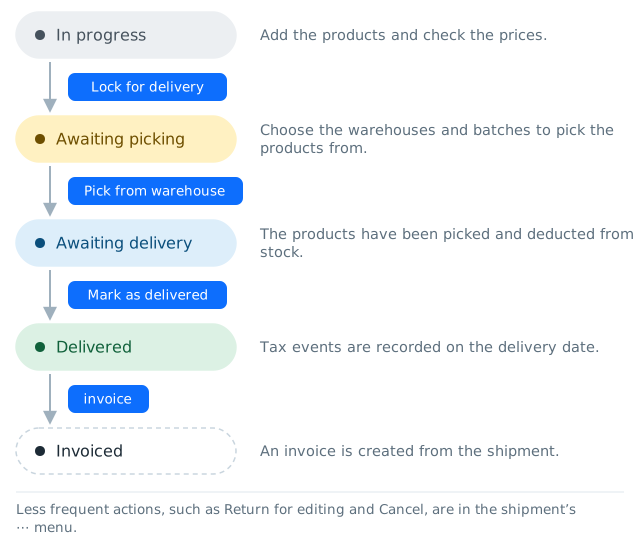
Creating a new shipment
- Open the customer's page and press new shipment.
- The form is prefilled with the delivery location of the customer's previous shipment. Check or change the details:
- Delivery location (name, required). With the Pick from Valvira data button you can choose a business location found in Valvira's licence register with the customer's Business ID, in which case the name, licence number and address are filled in.
- Delivery location alcohol licence no. (required for domestic customers). If the licence has ended or is not yet in force, the form shows a warning.
- Bonded warehouse no., if the shipment goes to the recipient's bonded warehouse.
- Delivery location's standard reference, which becomes the shipment's customer reference.
- Store number: a retail chain's fixed business location identifier (required on an S-ryhmä e-invoice).
- Address (street address, postcode, post town) and Additional instructions for the driver.
- Press Create shipment.
If you change the details of the prefilled delivery location, the system creates a new delivery location from the changed details. This way the delivery locations of earlier shipments stay unchanged. The shipment's creator is set as the shipment's seller. In an export customer's shipment, the form asks for the delivery location's country instead of the alcohol licence.
A shipment cannot be created for a customer under a sales ban. If the customer is put under a sales ban after the shipment was created, the shipment page shows a warning until the shipment has been delivered or cancelled. Check then whether it is to be delivered.
The delivery location can be changed later on the Delivery location row of the shipment page with the link edit or set, until the shipment has been delivered. The shipment page also shows if the delivery location's alcohol licence is not in force today.
Adding products
Products are added to a shipment in progress with the form at the bottom of the shipment page:
- Type the product's name under Add product and choose the product. With the options Hide products without a price and Hide products not in stock you can narrow the list. Once you have chosen the product, you see its stock balance and price, and the price type (contract price, customer group price or general price, see Pricing).
- Enter the Quantity. If the product is already in the shipment, the new quantity replaces the earlier one and is not added to it.
- Check the price. You can change the row price or the unit price. If the product has a deposit, you can add it to the price separately (Deposit).
- If necessary, enter a row-specific Discount %. An empty field means that the order's or the customer's discount is used.
- If you changed the price, choose whether the price is used only for this order, set as the customer's contract price or as the new general price.
- Press Add to shipment.
If the product has no EAN code, the form warns about it. Set the code for the product before confirming the order.
A row can be removed with the link delete while the shipment is in progress.
Discounts: Under Order discount % you can give a discount for the whole order and save it with the Update discount button. The order discount replaces the customer's permanent discount (set on the customer's Contract price list tab). Rows that have been given their own price or discount stay unchanged.
Multipack warning: A multipack is a product of its own whose price is per pack. If a row's unit price looks like the price of a single product (or vice versa), the system warns already in the form and offers a correction. When saving, the row is not added; instead a Check multipack notice opens on the page. Correct the row or press Add anyway. The same check is made when the shipment is locked for delivery (Continue anyway) or invoiced (Invoice anyway).
Other shipment details
- Seller: choose the seller and press Change. The seller can no longer be changed once the shipment has been invoiced.
- Customer reference: printed on the shipping documents and the invoice. Saved automatically.
- Cover note: free text that is printed on the shipping documents. The cover note is prefilled with the account's default cover note, and it is saved automatically.
The customer reference and cover note can be edited until the shipment has been delivered.
Valvira reporting: If the delivery location has no alcohol licence number (e.g. export shipments), the shipment needs a Valvira special sales ID code: 01 medical use, 02 to a diplomatic mission, 03 for export, 04 for tax-free sales, 05 to a vessel for provisioning, 06 to a free zone or customs office, 07 as communion wine. Choose the code in a shipment in progress. For export customers the code is set automatically to 03 and the export country to the delivery location's country. As long as the code is missing, the row is red and the shipment cannot be locked.
Locking and picking
- When the products are ready, press Lock for delivery. The shipment moves to the status awaiting picking. The button is shown only if the shipment has products and the necessary Valvira details are in order.
- The shipment page shows in which warehouses the products are. Press Pick from warehouse.
- The picking page is designed to be used on a phone in the warehouse too: each product has its own card showing the ordered and the chosen quantity and the warehouses' batches. You can enter the quantities per batch, press a batch's balance (the page fills in the quantity needed or the batch's whole balance) or choose Automatically from this warehouse, in which case the quantities are taken from the warehouse's batches starting from the oldest. The picking also shows the batches' best-before dates. Clear selections removes the chosen quantities, and Return without confirming takes you back to the shipment.
- Press Confirm selected picks. The button becomes active only when the chosen quantity of each product is exactly the ordered quantity, i.e. the picking cannot be left short.
Picking deducts the products from the stock balance immediately: a row "Shipment N" is added to the batches' stock ledger. The shipment moves to the status awaiting delivery.
You get a combined picking list for several waiting shipments from the Awaiting picking view of the shipment list with the Create picking list button. Choose the shipments to include and press Update list. The list collects the products of the chosen shipments by product, and it can be printed (Print list). The actual picking is still done per shipment.
A confirmed picking can be undone with the Cancel and pick again button until the shipment has been marked as delivered. The picked products are returned to stock and the shipment goes back to the status awaiting picking as soon as the picking page opens, even if you do not confirm a new picking.
Marking as delivered
- On the shipment page, choose the delivery date and time. The default is the current hour.
- Press Mark as delivered.
If the shipment contains alcoholic beverages and the chosen date is outside the validity of the delivery location's alcohol licence, the page warns already when the date is chosen. When saving, a Confirm delivery date notice opens: choose Yes, mark as delivered or Cancel.
If the shipment cannot be marked as delivered yet, the reason is shown in place of the button, for example Valvira ID code missing or EMCS e-AD (ARC) missing. The latter concerns EU customers' shipments on accounts that use the Finnish Tax Administration's EMCS interface, see Export customers.
When the shipment is marked as delivered:
- the system records the delivered quantities (in litres) and prices on the tax account with the chosen delivery date. These entries are the basis of Valvira's delivery report and the excise duty return. The entry includes the delivery location's alcohol licence number or Valvira's ID code and export country. Multipacks are reported with the details of the single product.
- the delivered litres are deducted from the account's BrewOS licence. If the BrewOS licence litres are not sufficient, the shipment is not marked as delivered; instead you see an error message. Add BrewOS licence under Settings > Licence and try again.
Delivery no longer affects the stock balance, because the products were already deducted at picking.
Cancelling a shipment
The function Cancel can be found in the ⋯ menu of the shipment page in all statuses, except in shipments that have already been cancelled.
- Cancelling a shipment that is in progress or awaiting picking only marks it as cancelled.
- If the products have already been picked, the picked products are returned to stock.
- If the shipment has already been delivered, cancelling returns the products to stock, deletes the shipment's tax account entries and returns the BrewOS licence litres. A separate confirmation is asked for this. Use it only for correcting recording errors: if the period's reports have already been sent, they no longer match the system's data. If the customer returns delivered products, see customer return.
A cancelled shipment cannot be restored. If necessary, make a new shipment. All status changes are saved in the event log.
Webshop orders
If the account has a webshop (Settings > Webshops), the webshop's orders arrive in BrewOS as shipments in the status awaiting picking. They are picked and marked as delivered like any other shipment.
- A Webshop order is a customer's order from the webshop. The shipment page shows the webshop, the order number, the time received and a possible requested delivery date.
- A Consumer order is a consumer's order, which goes to the webshop's consumer sales customer. It is reported to Valvira under the retail licence defined in the webshop settings, and no invoice is made for it: payment and receipt are handled in the webshop. The shipment page also shows the delivery method (pickup or home delivery), the payment status and the consumer's contact details. The consumer has confirmed being of age in the webshop, but check the age at hand-over.
An unpaid consumer order can be marked as paid with the Mark paid button, for example when it is paid at pickup. If you mark an unpaid order as delivered, BrewOS first asks whether it has been paid: Yes, paid and delivered marks it as paid at the same time. If an unpaid reservation expires, the order is cancelled automatically. Delivered consumer orders are not shown in the Not invoiced view of the shipment list.
Invoicing shipments
BrewOS creates PDF shipping documents for shipments and allows shipments to be invoiced:
- invoice creates a draft invoice from the shipment in BrewOS invoicing. The function is available when the shipment has been locked and has not been marked as invoiced: on a delivered shipment it is the page's main button, and on a shipment awaiting picking or delivery it is in the ⋯ menu. If the shipment already has a draft invoice, the function opens it. If the shipment already has an approved invoice, no new invoice is created; instead a Shipment already invoiced notice opens on the page. Void the earlier invoice, or create a new invoice with the Create new invoice anyway button. See Invoicing.
- Mark as invoiced marks the shipment as invoiced if you invoice with another system. You can give the invoice number at the same time under Invoiced elsewhere?. The function is available in all statuses, except for a cancelled shipment.
- Undo invoicing (in the ⋯ menu) removes the invoiced marking. It does not cancel or credit the shipment's invoices: if the shipment still has a draft invoice or an approved invoice, BrewOS reminds you of it. Cancel the draft or credit the invoice if you invoice the shipment again.
In the shipment list the Invoice column shows whether a shipment has been invoiced, and you can narrow the list to uninvoiced or invoiced shipments.