
Products
In BrewOS a product means an article for sale: a particular beverage in a particular package. Every product consists of two parts:
- the content, i.e. the beverage, which has a commercial name and a strength, and
- the package, i.e. the package type (e.g. bottle, can or keg), the package size and a possible label name.
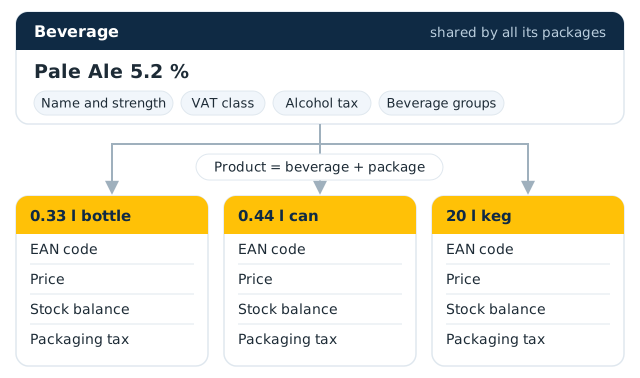
Different packages of the same beverage (e.g. a 0.33 l bottle and a 20 l keg) are separate products with their own EAN codes, prices and stock balances, but they share the beverage's name, strength and beverage-specific tax settings. In stock accounting, "product" almost always means such a packaged product. In production, beer is packed into products in packaging; the products into which beer made according to a recipe can be packaged are defined on the recipe page under manage recipe products (see Recipes and Production batches).
Product pricing is always done per package.
Product list
Products can be found under products in the main menu. At the top of the page are the buttons Product groups, Deposits, EAN codes, Download and create new product.
Products can be searched by name, EAN code, Valvira code or package type. The list can be filtered by stock situation, product group (the groups by dimension) and status (Active products / Deleted products), and sorted by name or newest first. The product group filter shows the products that have the chosen group either on the package or on the drink. If the excise duty groups of some products need checking, a notice above the list takes you to those products (see Tax settings below).
The switch at the top of the list changes between two views. The page remembers the view you used last.
- Prices and stock – each product's stock balance and General price, and the chosen customer group's prices if customer groups have been defined. The price can be edited directly in the list by clicking it (see Pricing).
- EAN and Valvira codes – each package's EAN code and the code the product is reported to Valvira under (the Valvira product number if one is given, otherwise the EAN code; a multipack under its single product's code and a low fill product under the normally filled product's code). Beverages of at most 2.8 % are not reported to Valvira. A missing or invalid code is marked in red. A missing EAN code can be given right in the list: type the code or choose Give the next free number from your own EAN number range. The code is also added to the product's tax events that have no product number. Click the Valvira product number to edit it. The new number is also updated in the tax events whose month's delivery report has not been sent yet.
In the codes view, Only products missing a code narrows the list to products whose details still need filling in. Download gives every product of the chosen view and filters as an Excel or CSV file (View as an Excel file / View as a CSV file), for example for a wholesaler's product form.
Creating a new product
- Open products and press create new product.
- Enter the Name, i.e. the beverage's commercial name. Do not write the package in the name (such as "bottle" or "keg") – the system shows the package with the name automatically.
- Enter the Strength as a percentage (0–99 %, to one decimal place).
- Enter the Package type. You can choose bottle, can or keg from the suggestions, or type your own.
- Enter the Package size and choose the unit (millilitres or litres).
- If needed, enter a Label name (optional), see below.
- Choose the Identifier: No identifier now, EAN code from your own number range or Valvira reporting code (another manufacturer's product). Your own product gets an EAN code from your company's number range: the first free code is filled in, but you can pick from the list or type any of your own codes that no product uses yet, including one reserved with a note. Another manufacturer's product (e.g. an imported one) gets the manufacturer's code, such as the barcode on the label, as its Valvira reporting code. BrewOS rejects a code Valvira would not accept. The identifier can also be added later.
- Check the excise duty groups under Tax settings. BrewOS preselects them based on the strength and package size: for a beverage over 0.5 % the alcohol duty group is assumed to be beers and malt beverages, and the beverage packaging tax group is chosen accordingly. For a package over 5 litres no beverage packaging tax group needs to be chosen.
- If needed, choose the drink's and the package's product groups under Product groups (shown when the account has product groups, see below). When you add a package to an existing drink, the drink keeps its groups in the dimensions where you make no choice.
- Press Add product. You move to the new product's page.
Note the combination of name and strength: If you enter a name that is already in use and the same strength, the new product is linked to the existing beverage as a new package and it inherits the beverage's alcohol duty and soft drink tax groups. If the name is the same but the strength is different, BrewOS creates a new beverage and adds the strength to its name, e.g. "IPA, 5,5 %". So check the strength when you add a package to an existing beer.
The easiest way to add a new package to an existing beverage is to open one of its products and press create new package size / type. The name and strength are then prefilled and the form shows the beverage's packages already in use.
The product page
The heading of the product page shows the product's number, the beverage's name and strength, and the product's product groups. Under the heading is a switch with all packages of the beverage: choose a package to move to that product's page. Below it are the actions create new package size / type, create multipack and remove from range in the ⋯ menu, and the product's key facts: General price (the general price excluding VAT and the price per litre), EAN, VAT class and Best before (months).
The product's details are on the Basic details card, which is open on the Home tab and folded on the other tabs. Edit a field and save by pressing save changes, which appears after a change.
- Name – the beverage's commercial name. The change applies to all packages of the same beverage.
- Package – the product's package type, size and possible label name. With the edit link you can change the product's label name.
- Best before (months) – shelf life in months from packaging (1–200). When you change the value, BrewOS recalculates the best-before dates of this product's stock batches from the batches' dates. The value is also saved as the beverage's default.
- Strength – edited with the edit link. The change applies to all packages of the same beverage, but it is not copied to shipment or reporting data already made.
- VAT class – the VAT rate applied to the product, edited with the edit link, see below.
- EAN – the EAN code linked to the product as a barcode. If there is no code, the link manage EAN codes takes you to the EAN codes page.
- Valvira product number – the product number used primarily in Valvira reporting; the EAN code is used only if this is missing. Use it, for example, for the supplier's barcode of an imported product that does not belong to your own EAN number ranges. When you change the number, the new number is also updated in the product's tax events whose month's delivery report has not been sent yet. A multipack does not have this field. See Valvira reporting.
- Valvira reporting – the code under which the product is reported to Valvira, and where it comes from (Valvira product number, EAN code or the single product's code). It also shows any errors in the code and whether Valvira has accepted the code or reported it as unknown in an earlier report.
- External product no. – a possible product code in another system (e.g. ERP).
- Deposit – the deposit related to the product's package, see below.
- Drink groups (all packages) and Package groups – the product's product groups by dimension, see below.
The tabs are Home (excise duty settings), Warehouse, Pricing (see Pricing), Marketing and Shipments. The Warehouse tab shows the product's balance by purchase batch (Balance by purchase batch) and the latest stock events in all warehouses; a warehouse's name narrows the view to that warehouse, and a batch takes you to the batch's details (see Warehouses). The Shipments tab lists the delivered shipments that have included the product.
Tax settings
A product has four settings that affect taxation, and if necessary a fifth for the beverage packaging tax exemption:
- VAT class (in the product's basic details) – the VAT rate used in the product's prices. Applies to all packages of the same beverage. Zero rates (EU sales, export) cannot be chosen for a product; they are applied automatically on export customers' invoices.
- Alcohol and alcoholic beverage tax product group – e.g. Beers and other malt beverages, alcohol content over 0.5%, wines and other fermented beverages, intermediate products or ethyl alcohol, or group 0, in which case no alcohol duty is paid on the beverage. Applies to all packages of the same beverage.
- Soft drink tax product group – only for non-alcoholic beverages. Can be chosen only when the alcohol duty group is 0 (no alcohol or alcoholic beverage tax). Applies to all packages of the same beverage.
- Beverage packaging tax product group – per package. Packages over 5 litres are tax-free, and BrewOS takes this into account automatically.
- Beverage packaging tax exemption basis – chosen only if "No beverage packaging tax" has been chosen as the beverage packaging tax group (e.g. the package belongs to a return system). Without it, tax-free rows cannot be reported to the Finnish Tax Administration (Vero).
The excise duty groups are edited on the product's Home tab under Product settings; save by pressing Save settings. If the tax law has changed, the group may be shown separately for each period of the law version, and returns for earlier periods use the group of their own period. A period marked ⚠ needs checking. Products that need checking are also listed above the product list in the notice Excise duty groups need checking. More information: Excise duty.
Product groups and own production
Product groups are freely definable groups that make managing products and internal reporting easier. Groups are managed on the Product groups page, which you reach with the Product groups button on the product list or the link next to the group choices on the product page (manage product groups). You can therefore create groups before your first product.
Groups belong to dimensions. A dimension is a point of view by which products are grouped, for example Type (groups red and white), Country of origin (France, Italy) or Flavour. A dimension has two properties:
- Describes – whether the dimension describes the drink or the package. Drink groups are chosen once and apply to every package of the drink (e.g. type, country of origin, flavour). Package groups are chosen per package (e.g. sales channel, gift pack).
- Choice – whether a product can have only one group of the dimension (e.g. type: red or white) or several (e.g. several flavours).
A product's groups are the groups of its own package plus the groups of its drink. If the account had product groups before dimensions were introduced, they have been moved to a package-level dimension Tuoteryhmä (product group), of which a product can have one group.
Creating a dimension:
- At the bottom of the page, under Create a new dimension, enter the dimension's Name.
- Under Describes, choose whether the dimension applies to the drink or the package.
- Under Choice, choose whether a product can have one or several groups of the dimension.
- Press Add dimension.
The dimensions are shown on the page under the headings Drink groups and Package groups. The dimension's name and the choice A product can have several groups can be changed on its heading row, and the arrows change the order of the dimensions. A dimension cannot be changed to a single-group dimension if some drink or product already has several of its groups. Deleting a dimension also deletes its groups.
Adding a group:
- On the last row of the dimension's group list (New group), type the group's name.
- Leave Own production selected if the group's products are your own production, or deselect it e.g. for resold or contract-manufactured products.
- Press the row's + button (Add product group).
The name and the Own production choice of an existing group can be changed on its row; save with the row's ✓ button. The number in the group list's Products column takes you to the product list filtered to the group's products.
A product's groups are chosen in the basic details of the product page under Drink groups (all packages) and Package groups: for a single-group dimension choose the group from the dropdown, for a multiple-group dimension tick the groups' checkboxes. Save by pressing save changes. A change in the drink groups applies to every package of the drink.
Own production affects excise duty: the small brewery reduction is calculated only for products that are your own production. Beer that is not own production is declared at full excise duty, unless a reduction tier has been chosen for a manually recorded batch (see Warehouses and Excise duty). A product is own production unless one of its own groups or its drink's groups is marked as not own production. A product without product groups is treated as own production. Deleting a group detaches its products from the group.
Deposits
A deposit is a named, fixed-price package deposit. When a deposit has been chosen for a product, you can add the deposit's value to the invoice separately in shipments if the customer is not itself responsible for beverage packaging tax or PALPA reporting (see Shipments).
- Open the deposits with the Deposits button on the product list or the link in the product page's Deposit field (manage deposits).
- Under Create new deposit, enter the Name and Price, euros (incl. VAT) and press Add deposit. The deposit's price includes VAT.
- Choose the deposit in the product page's Deposit field and save.
Deleting a deposit (✕) happens immediately without confirmation, and the deposit is detached from all products.
Multipacks
A multipack (e.g. a 6-pack) is a product of its own with its own EAN code, price and stock balance. To Valvira and for excise duty, however, it is reported with the single product's identifiers, i.e. a 6-pack is reported as six single products.
- Open the single product's page and press create multipack. The button is shown only for normally filled products under 2 litres that are not themselves multipacks.
- Enter the Units per package (at least 2, default 6) and the Package name (default "6-pack"), and if needed a Label name.
- Press Create multipack.
The multipack inherits the single product's beverage packaging tax group and deposit. Set a price for it and, if needed, its own EAN code on its own page. A multipack has no Valvira product number of its own, because it is reported with the single product's identifiers. Stock balance can be transferred between the single product and the multipack (assembling / breaking up), see Warehouses.
Label name
The label name distinguishes different label versions of the same package size, e.g. a version made for another brand ("Pirkka"). The label name is shown in the product's name after the package. It can be given when creating the product or later with the edit link in the product page's Package field.
Low fill
Underfilled packages can be kept in a separate low fill balance. The transfer is made on the product's Warehouse tab:
- Choose the warehouse by clicking the warehouse's name in the balance or events table.
- Under Transfer products to low fill balance, enter the number of units to transfer and press Transfer.
The low fill product is created automatically with the first transfer. It uses the normally filled product's EAN code. From the low fill product's page you can likewise transfer products back to the normal fill balance.
Marketing
On the Marketing tab you maintain the information used in the sales catalogue and other sales channels (see Sales catalogue):
- Product description – the product's description. With the Translation links you can add translations of the description into different languages. Choose Copy the description to the product's other package versions if you want the same description and translations for all packages of the beverage. Save by pressing Save changes.
- Ingredient / Material – the ingredients and materials used in the product with their marketing names (read only). The list opens with the link Show / hide ingredients and materials used in the product.
- Files – the product's images and other files. Add a file under Save new file. An image file (PNG, JPEG, GIF) can be set as the product's default image with the link set as default image.
Removing a product from the range
Products are not deleted permanently, because they have stock and shipment history. Choose remove from range in the ⋯ menu of the product page, and the product moves to the Deleted products list and is no longer offered in choices. The product can be restored by pressing return to range on its page.