
ProCountor integration
If you use ProCountor for your company's accounting, you can transfer sales invoices prepared in BrewOS directly to ProCountor. BrewOS does not charge for using the integration, but ProCountor charges for receiving data electronically according to its own price list.
When ProCountor is used, ProCountor numbers the invoices, and approving the invoice, sending it to the customer, credits and payment recording are done in ProCountor. BrewOS then has no Approve or Credit button. BrewOS fetches the invoices' payment details from ProCountor automatically, see Payments. See the comparison in the Invoicing guide.
Getting started
The API key is created in ProCountor under API-avaimet (API keys) in the user menu in the top right corner:
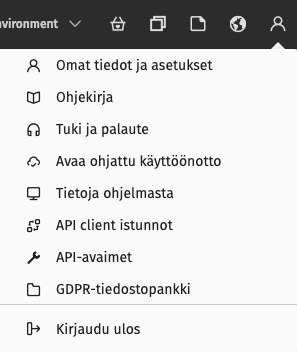
- In the ProCountor user menu, choose API-avaimet (API keys).
- Choose Uusi API-avain (New API key), which opens the Luo uusi API-avain (Create new API key) form. Enter brewosClient as the client software identifier. ProCountor creates an API key, which is a long series of letters and digits.
- In BrewOS, open Settings > Invoicing and choose Procountor settings at the bottom of the page (requires the owner role).
- Paste the API key into the API key field.
- Press Save changes and enable ProCountor. Saving immediately makes ProCountor the account's invoicing system and replaces any previous system.
After this, check on the Settings > Invoicing page:
- VAT in invoicing – the default VAT status of invoices transferred to ProCountor: Domestic or Domestic, cash basis; the current standard VAT rate (25.5 %) is shown in brackets. Saving the ProCountor settings always resets the choice to Domestic, so always check the choice after saving the settings.
- Payment terms and Account number. The invoice number field is not shown, because ProCountor assigns the invoice numbers.
Transferring an invoice to ProCountor
- Create the invoice in BrewOS and finish the draft, see Invoicing.
- On the invoice page, press Send to ProCountor.
- BrewOS transfers the invoice immediately. When the transfer succeeds, the notice Invoice sent to ProCountor is shown.
In the transfer
- BrewOS looks for the customer in ProCountor by Business ID. If the customer is not found, BrewOS creates it in ProCountor. The customer found or created is remembered for subsequent invoices. Customers are not imported from ProCountor into BrewOS.
- the invoice is created in ProCountor as an unfinished invoice, and ProCountor gives it an invoice number. BrewOS adopts the number and locks the invoice; the status is Sent to accounting.
- if both an e-invoice address and an e-invoice operator have been saved for the customer in BrewOS, the invoice's delivery method in ProCountor is set to e-invoice. Otherwise the delivery method is "not sent".
Check, approve and send the invoice to the customer in ProCountor. When the invoice is no longer unfinished in ProCountor, BrewOS marks it with the status Sent to customer. BrewOS checks the status every few minutes.
Send the invoice to the customer from ProCountor, not as a BrewOS PDF file: the reference number of an invoice transferred to ProCountor is formed differently from the Payment reference in the BrewOS PDF.
EU and export invoices. ProCountor's tax codes are account-specific, so BrewOS also transfers zero-rate rows with the invoice's default VAT status. Check the tax treatment of intra-EU sales and export invoices in ProCountor before approving the invoice.
Fetching payment details
BrewOS fetches the status and payments of the invoices transferred to ProCountor and records the payments on the invoices as payments, see Payments. The fetch uses the same API key as the invoice transfer, so the ProCountor user who created the API key must have permission to view sales invoices. If the permission is missing, a notice is shown on the BrewOS home page, on the invoicing > Payments tab and in the customer's invoice list. Add the permission for the user in ProCountor; BrewOS fetches the missing payments on its next fetches.
If the notice says that ProCountor does not accept the API key saved in BrewOS, create a new API key in ProCountor and save it in the ProCountor settings.
Several customers with the same Business ID
If ProCountor has more than one customer with the same Business ID, the transfer stops and the invoice page shows the choice Several customers with the same Business ID were found in ProCountor. Choose where to send the invoice:. Choose the correct customer and press Send to selected customer. BrewOS remembers the choice and does not ask it again for the same customer's subsequent invoices.
Error situations
- If the transfer fails, the invoice page shows the notice Error sending to ProCountor: and the reason given by ProCountor. The invoice remains in BrewOS as an editable draft; fix the error and press Send to ProCountor again.
- If the notice is ProCountor API key missing, save the API key again in the ProCountor settings.
- If the invoice has been left in the sending queue (Awaiting sending) or its transfer has failed (Error: Transferring the invoice to accounting failed.), BrewOS automatically retries the transfer once a minute, at most five times. The Return from send queue button removes the invoice from the queue and returns it to an editable draft. Before sending again, check in ProCountor that the invoice is not already there.